20. The customer web panel
Alongside the desktop app, your account has a web panel at steuer14.com → Sign in. Use it to buy and manage your plan, see your cars and their stored scans, open reports and history, manage devices and write to support — from any computer or phone, without the app.
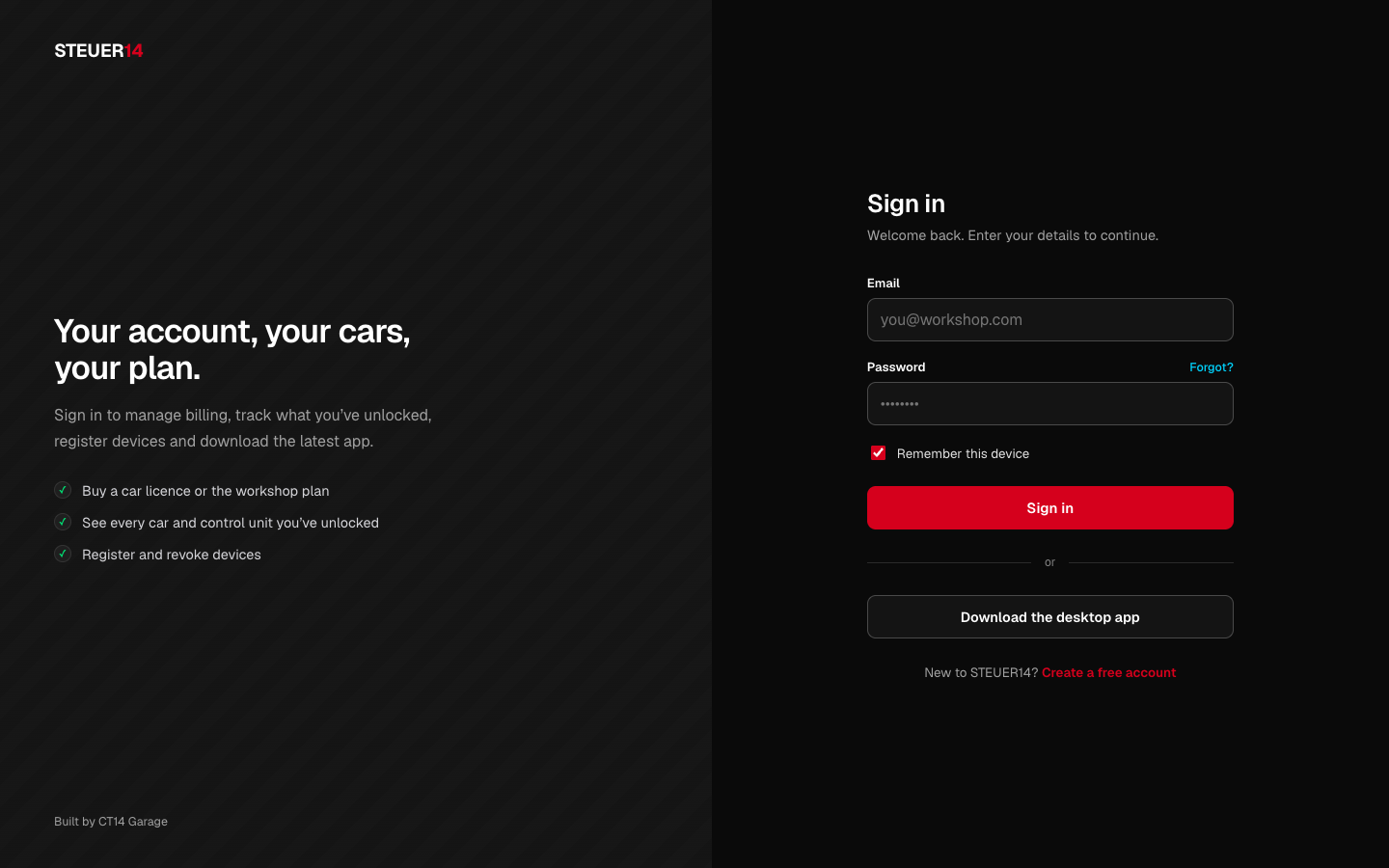
Signing in
Enter your account Email and Password, optionally tick Remember this device, and press Sign in — the same account as the desktop app. Forgot? sends a password-reset link; Create a free account registers a new one. With two-factor sign-in on, an Authenticator code field follows: enter the current 6-digit code from your app and press Sign in again.
What's inside
The sidebar groups the pages under Account, Workshop and System:
- Overview — your plan and its renewal date, connected devices, cars worked on, and recent payments.
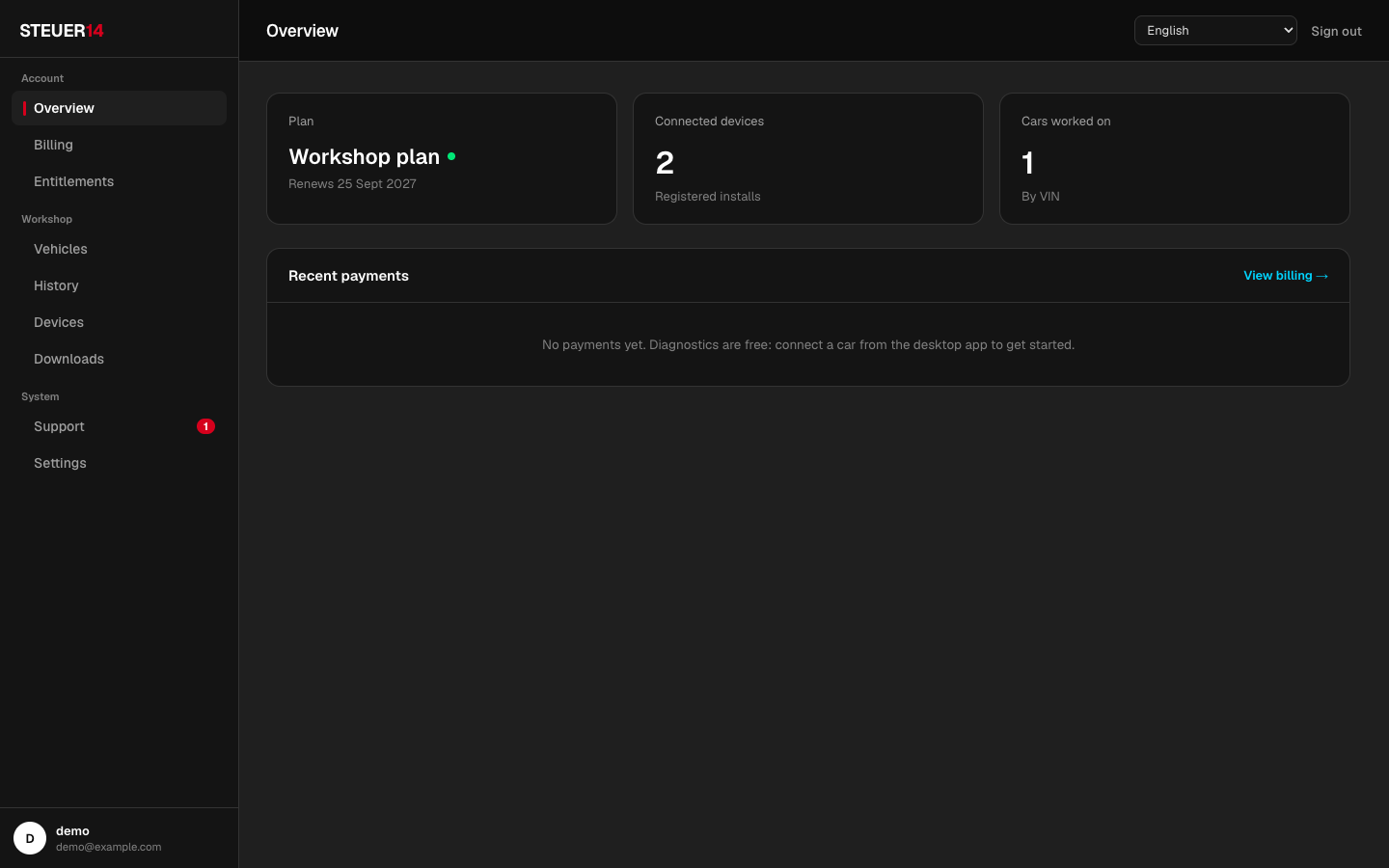
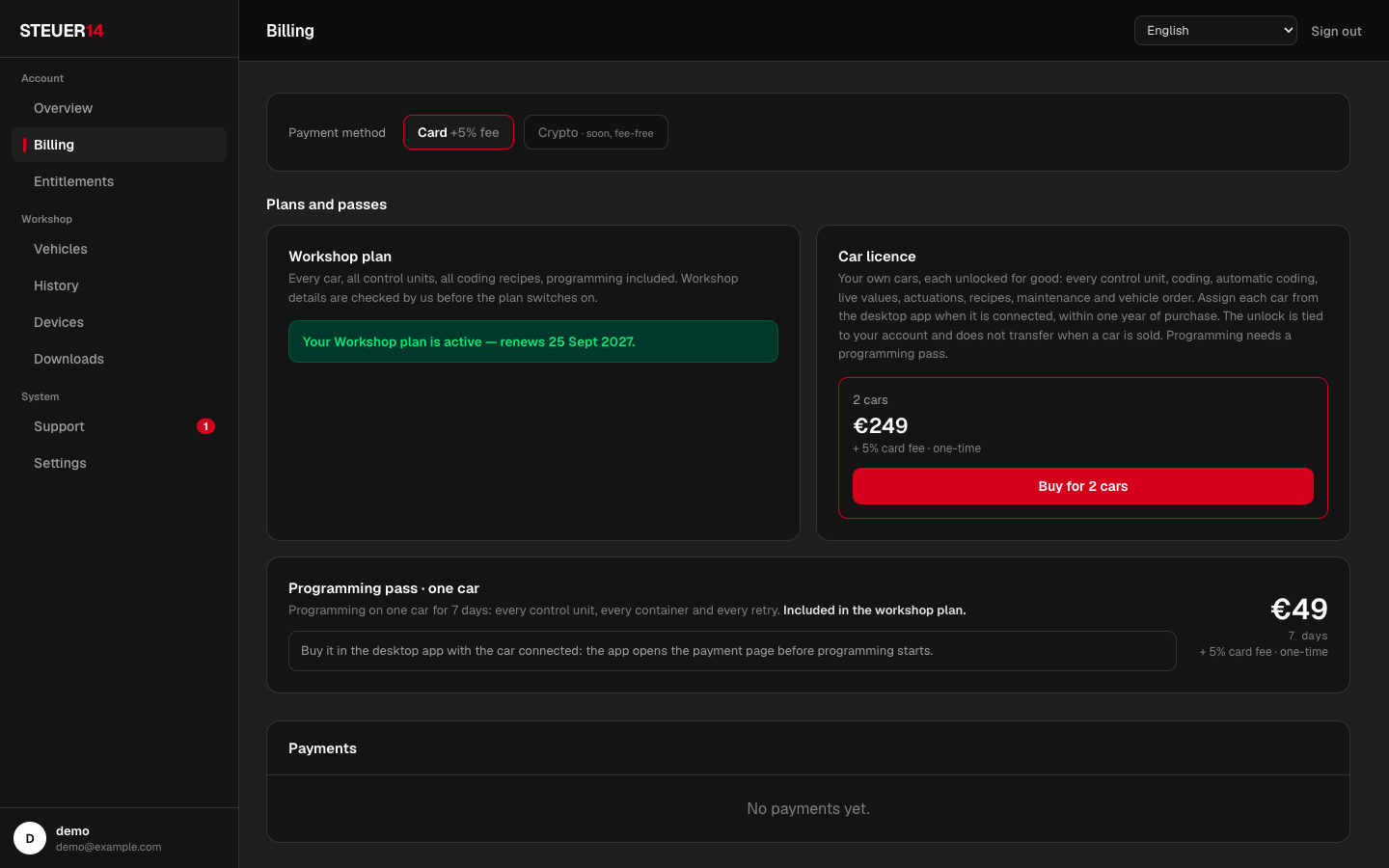
- Billing — the payment method, your plan (car licence, workshop plan, programming pass) with the buy buttons, and every payment with its receipt.
- Entitlements — what your account can use, per car.
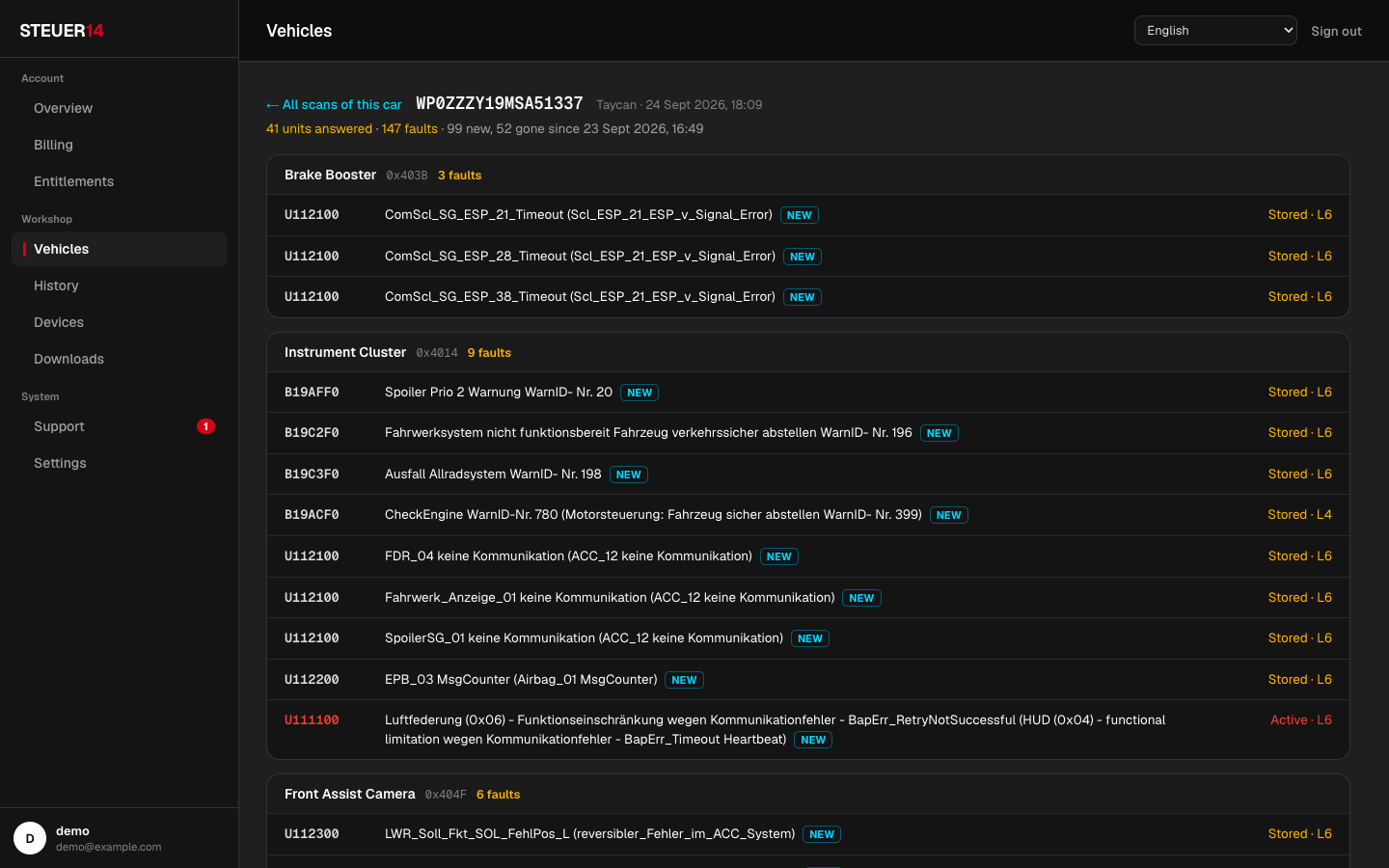
- Vehicles — every car you connected, by VIN. Open a car to see its stored fault scans; open a scan to see its fault memory grouped by control unit, with the faults that are new since the previous scan marked NEW and the ones that are gone listed at the end.
- History — per vehicle, the same coding writes, vehicle-order copies, programming jobs, battery reads (with the pack map, as in the app), reports and fault scans as the app's account history; reports download as PDF.
- Devices — every computer and browser on your account; on the workshop plan, which computer it is bound to and how many device changes are left. Revoke signs a device out.
- Downloads — the desktop app for macOS and Windows, with version and checksum.
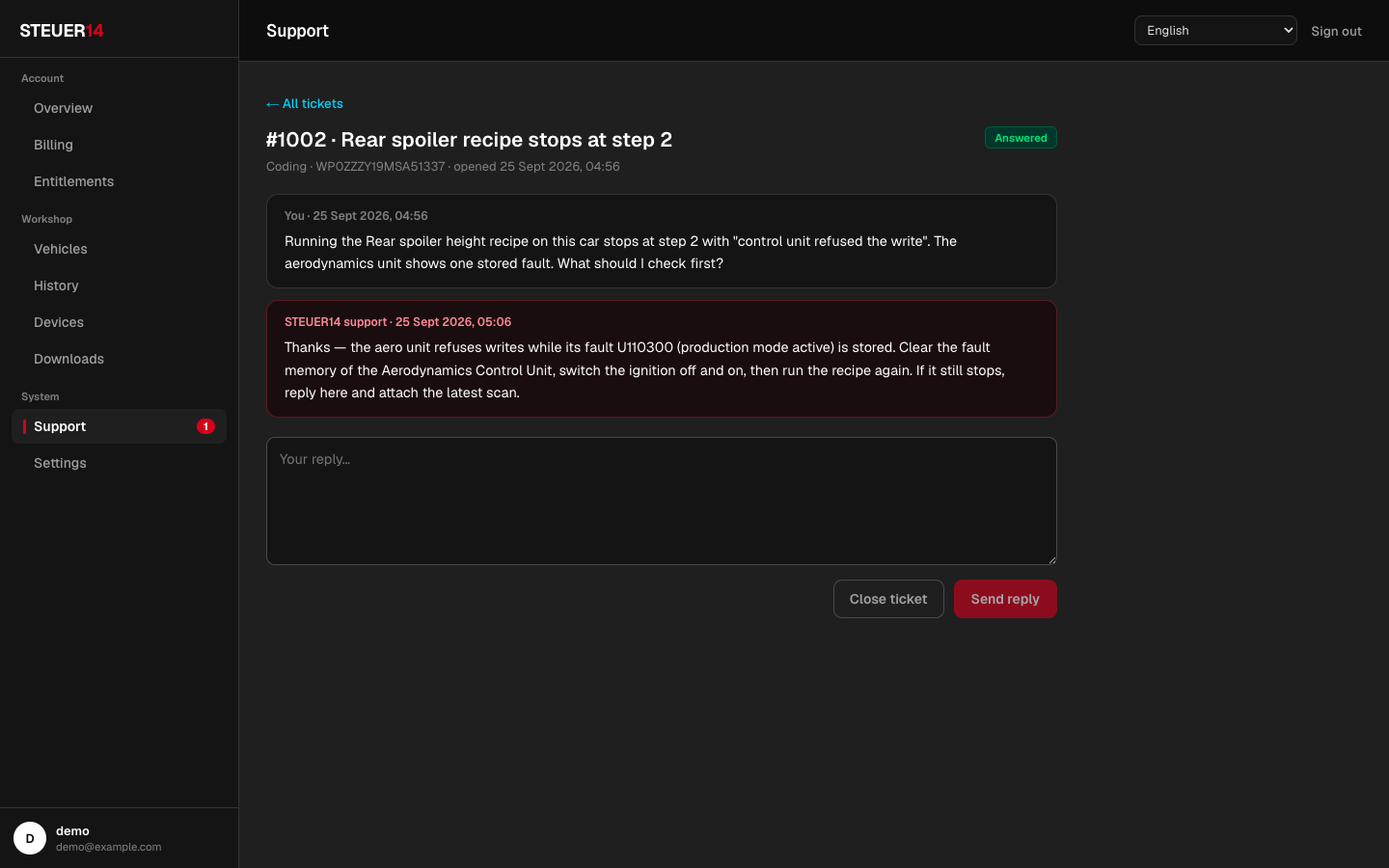
- Support — your support tickets: open a new one (with a car and its latest scan attached), read the replies, answer, or close it.
- Settings — profile, password, two-factor sign-in (below), report branding (your workshop logo, on the workshop plan), e-mail preferences, and account deletion.
Two-factor sign-in
Two-factor sign-in asks for a one-time code from your phone as well as the password, so a stolen password alone cannot get into your account. It works with any authenticator app — Google Authenticator, Microsoft Authenticator, Apple Passwords, Authy, 1Password, Tencent Authenticator and others.
Where the code is asked for: signing in to the web panel, and signing in to the desktop app on a computer your account does not know yet (a new PC, or moving the workshop plan to another computer). The computer your account already uses keeps signing in with the password alone.
Turning it on
- Settings → Two-factor sign-in → Turn on, enter your password, Continue.
- Scan the QR code with your authenticator app. Cannot scan? Type the key shown next to it into the app by hand. The app adds an entry STEUER14 (your e-mail).
- Enter the 6-digit code the app shows and press Confirm and turn on.
- The panel shows ten recovery codes. Each one signs you in once if your phone is lost. Copy or Download .txt and keep them somewhere safe (a password manager, or printed in the office) — they are shown only this once. Then press I have saved them.
The card now reads ON, with the date and how many recovery codes are left.
Signing in with it
- Web panel: after the password, enter the current code in Authenticator code.
- Desktop app: on a new computer, the Two-factor sign-in window asks for the code after the password.
- A code is valid for about 30 seconds (the one before and after also work, for phones whose clock is a little off). If a code is refused, wait for the next one.
- No phone at hand? Enter a recovery code instead of the 6-digit code — each works once.
- After five wrong codes the check pauses for a few minutes.
New recovery codes, turning it off
- New recovery codes — asks for your password and a current code, shows ten new codes; the old ones stop working. Do this when you have used several, or think someone saw them.
- Turn off — asks for your password and a current code (or a recovery code).
- Staff accounts cannot turn it off.
Lost your phone and your recovery codes?
Open a support ticket from the e-mail address of the account (or ask a colleague to). After we have checked that the account is yours, we turn two-factor sign-in off; sign in with your password and turn it on again with the new phone.
Language
The panel is available in English and Simplified Chinese; the language selector is in its top bar. As in the app, control-unit names and fault texts come translated from the server.