3. Control-unit overview & scan
The control-unit overview is the hub for a vehicle. It lists every control unit, scans them for presence and faults, and gives access to the vehicle-wide functions.
The header shows the platform and a one-line verdict; the VIN and a connection pictogram sit at the top right. A tab strip switches between Overview, Topology, Fault memory, Charging (Taycan), Integration test, Special functions, Coding recipes and Vehicle order.
Scanning the control units (Connect & poll)
- Press Connect & poll (in the ENET pop-up) or Re-poll control units on the function bar. The app queries every control unit for presence and stored faults.
- While it runs, the view switches to the Topology diagram so you can watch each unit answer.
- When it finishes, the verdict reads N of M control units present, K with stored faults.
Every scan is stored in your account history, so you can compare it later — a fault that is new since the previous scan of the same car is marked New (see chapter 4), and the web panel shows every stored scan per car (see chapter 20).
The Overview tab (roster)
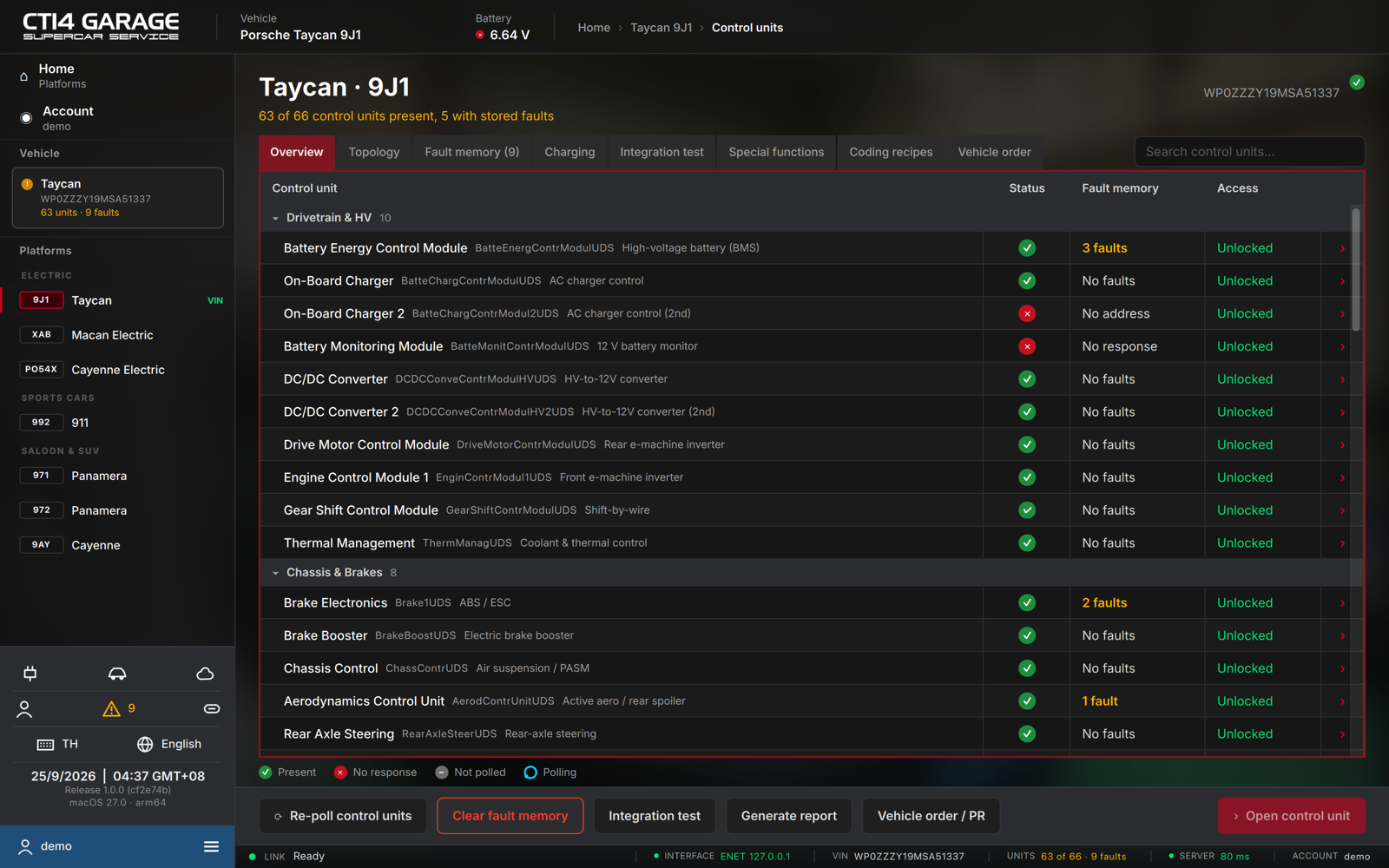
The roster lists every control unit grouped by category (Drivetrain & HV, Chassis & Brakes, Driver Assistance, and so on — click a category header to collapse it). Each row shows:
- Control unit — its name, base variant and a subtitle.
- Status — ✓ present, ✕ no response, – not polled, ○ polling.
- Fault memory — the stored-fault count after a scan.
- Access — what your plan gives you on this unit: Free, Unlocked, or Preview (see chapter 2).
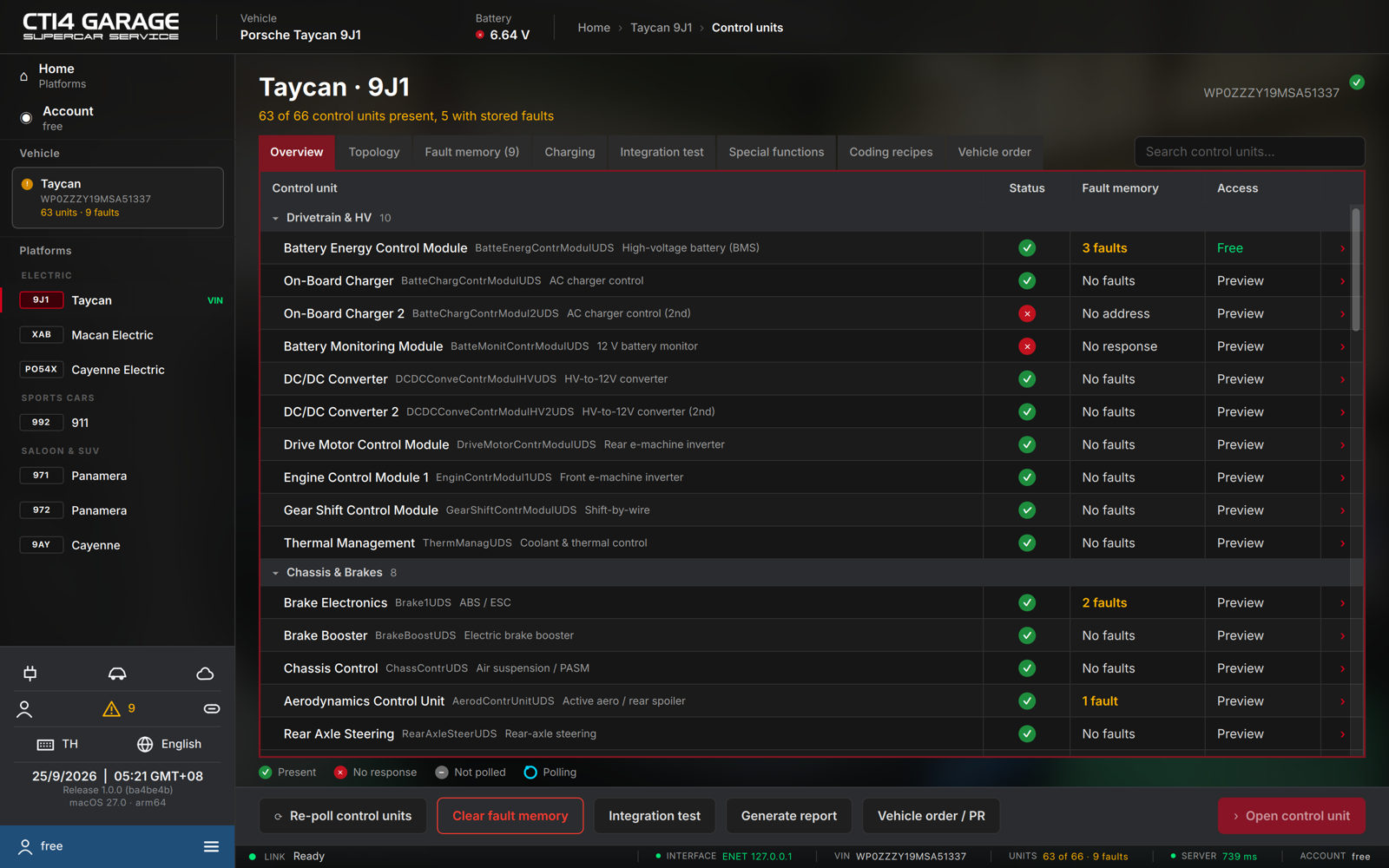
Use Search control units… to filter the list. Double-click a row, or select it and press Open control unit, to open it.
The Topology tab
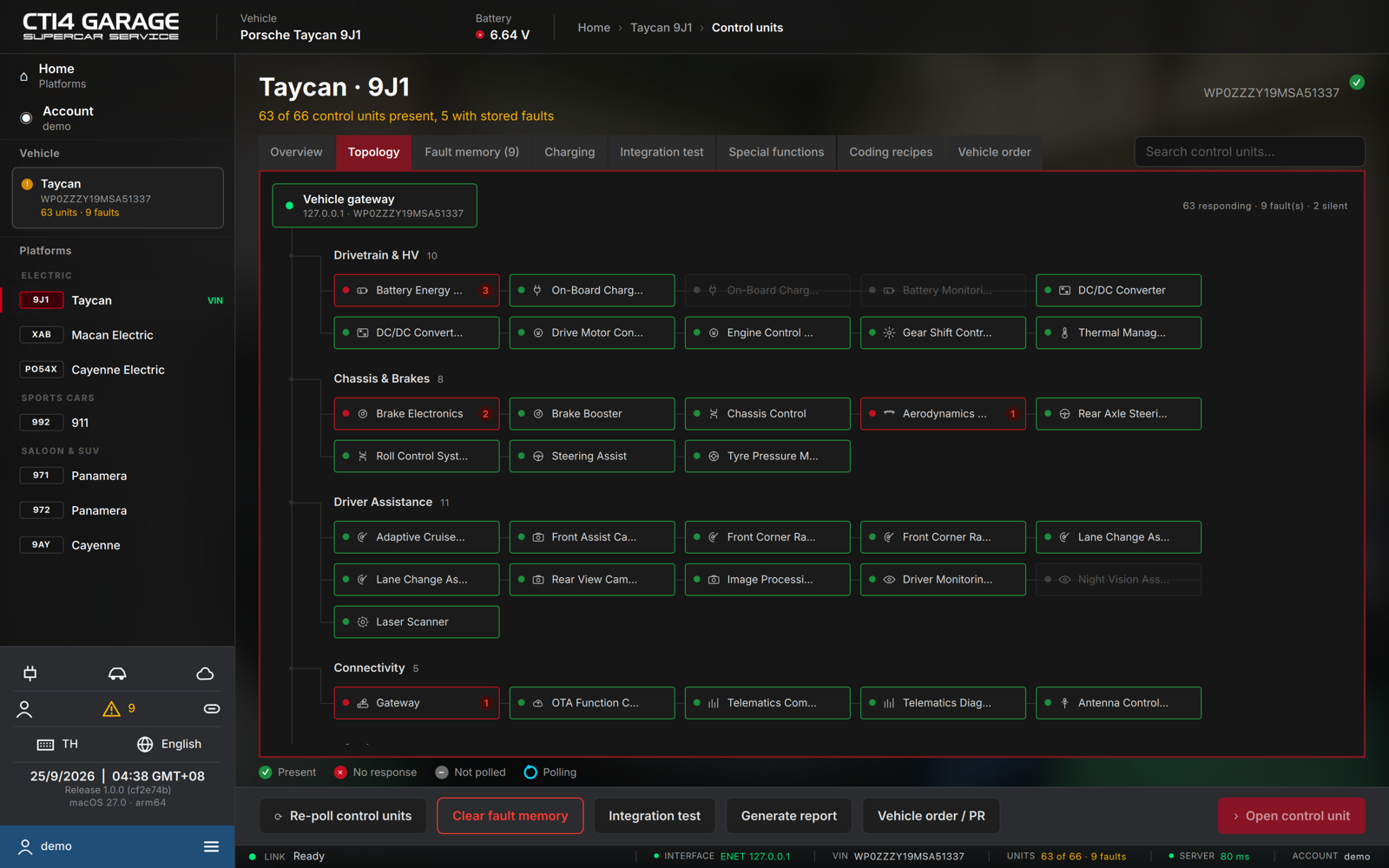
Topology draws the same control units as a network hung off the vehicle gateway, coloured by the last scan: green present, red with a fault badge, dimmed for silent units. The summary at the top right reads N responding · K fault(s) · S silent. Click a node to open that control unit.
The Fault memory tab
Every stored fault of the car in one table, grouped by control unit — see chapter 4.
The Integration test
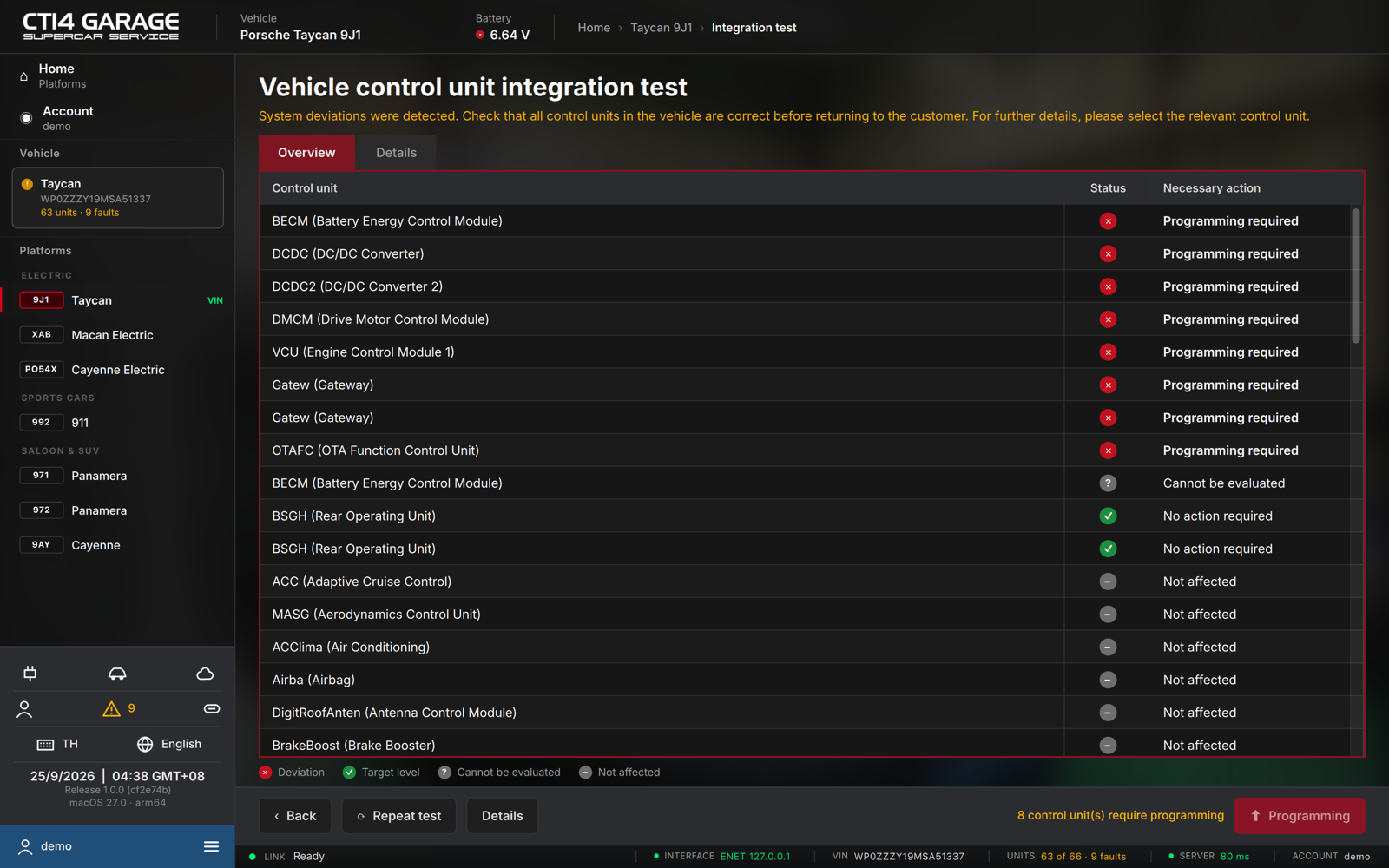
The integration test reads the installed software of every control unit and compares it with the target for this vehicle — as the factory tester does before handing a car back.
- Open the Integration test tab (or press Integration test on the function bar); press Repeat test to run it again.
- The Overview tab lists each unit with a Status and the Necessary action (Programming required, No action required, Not affected, Cannot be evaluated). The Details tab adds installed / target software, hardware, bootloader and target part number.
- Deviations are sorted to the top. Select a unit that needs programming and press Programming to jump to its programming page (see chapter 12).
Legend: ✕ deviation · ✓ target level · ? cannot be evaluated · – not affected.
Vehicle-wide actions
The function bar also carries Clear fault memory (see chapter 4), Generate report (see chapter 17) and Vehicle order / PR (see chapter 11). The Special functions tab is described in chapter 13, Coding recipes in chapter 8 and Charging in chapter 16.