18. Support
Support (in the ≡ menu at the bottom of the sidebar) has two tabs: Troubleshooting, which checks everything between the app and the car step by step, and Support tickets, to ask the STEUER14 team for help from inside the app.
Troubleshooting
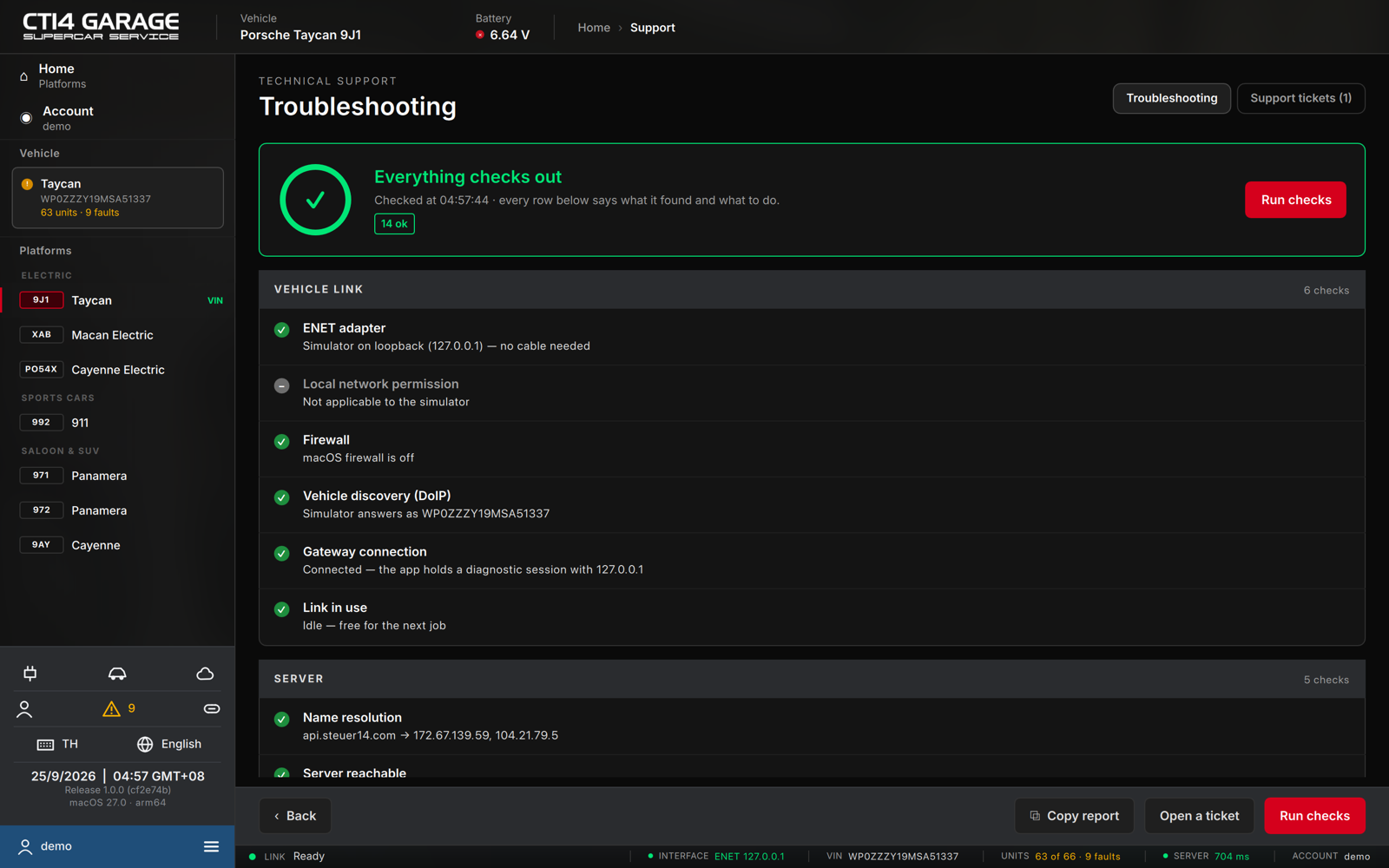
- Open Support → Troubleshooting and press Run checks.
- The app checks, one row each, the vehicle link (ENET adapter, network permission, firewall, vehicle discovery, gateway connection, whether the link is in use) and the server (name resolution, reachability, time, session, this computer's key), and says for each row what it found and what to do. A row that needs a setting changed has a button that opens it.
- The summary at the top reads Everything checks out or names the first problem.
- Copy report copies the full result as text; Open a ticket starts a support ticket with the report attached.
Support tickets
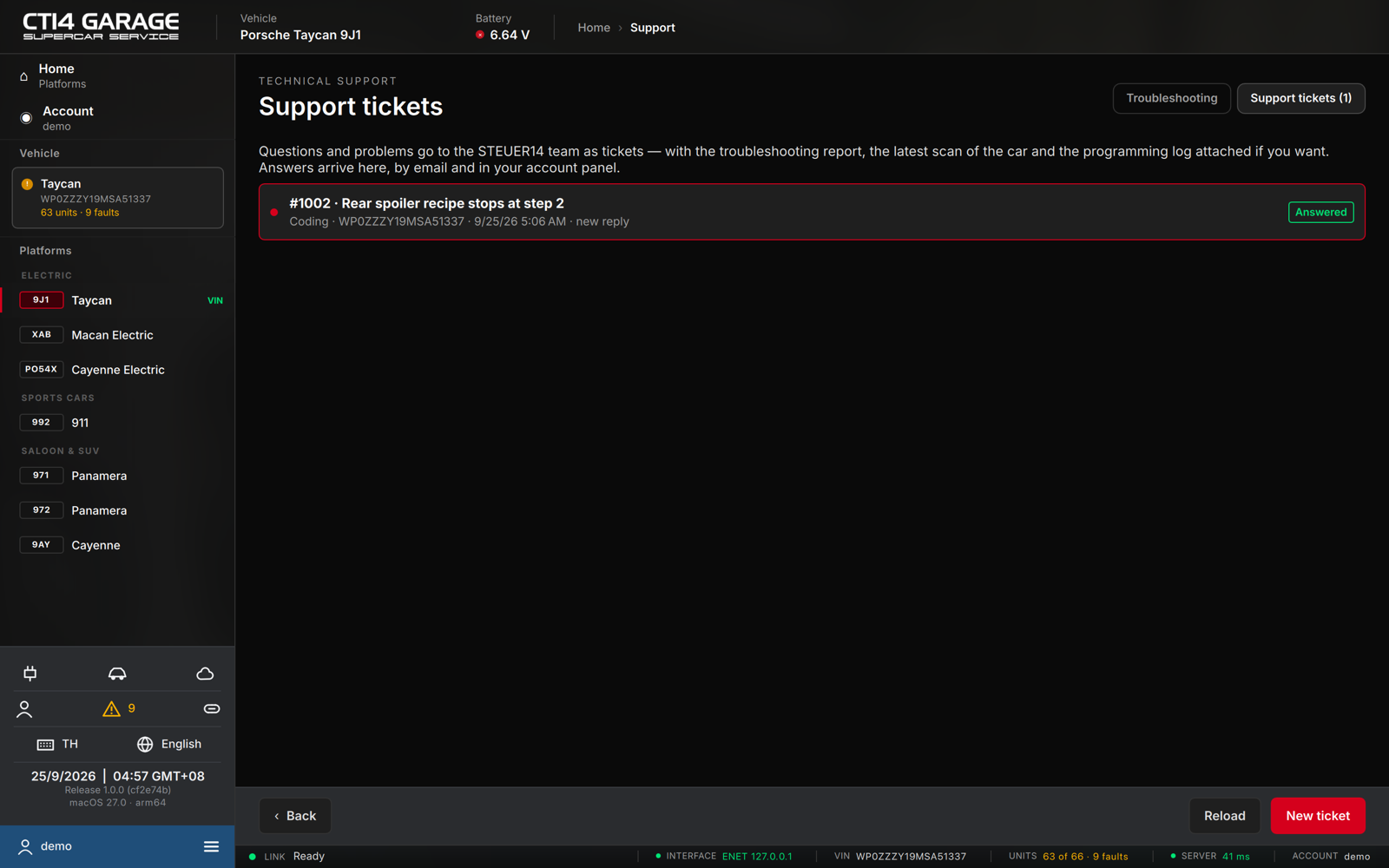
The Support tickets tab lists your tickets with their number, subject, topic, car, date and state: Waiting for support, Answered or Closed. A red dot marks a ticket with a reply you have not read yet; the menu shows the number of unread replies.
Opening a ticket
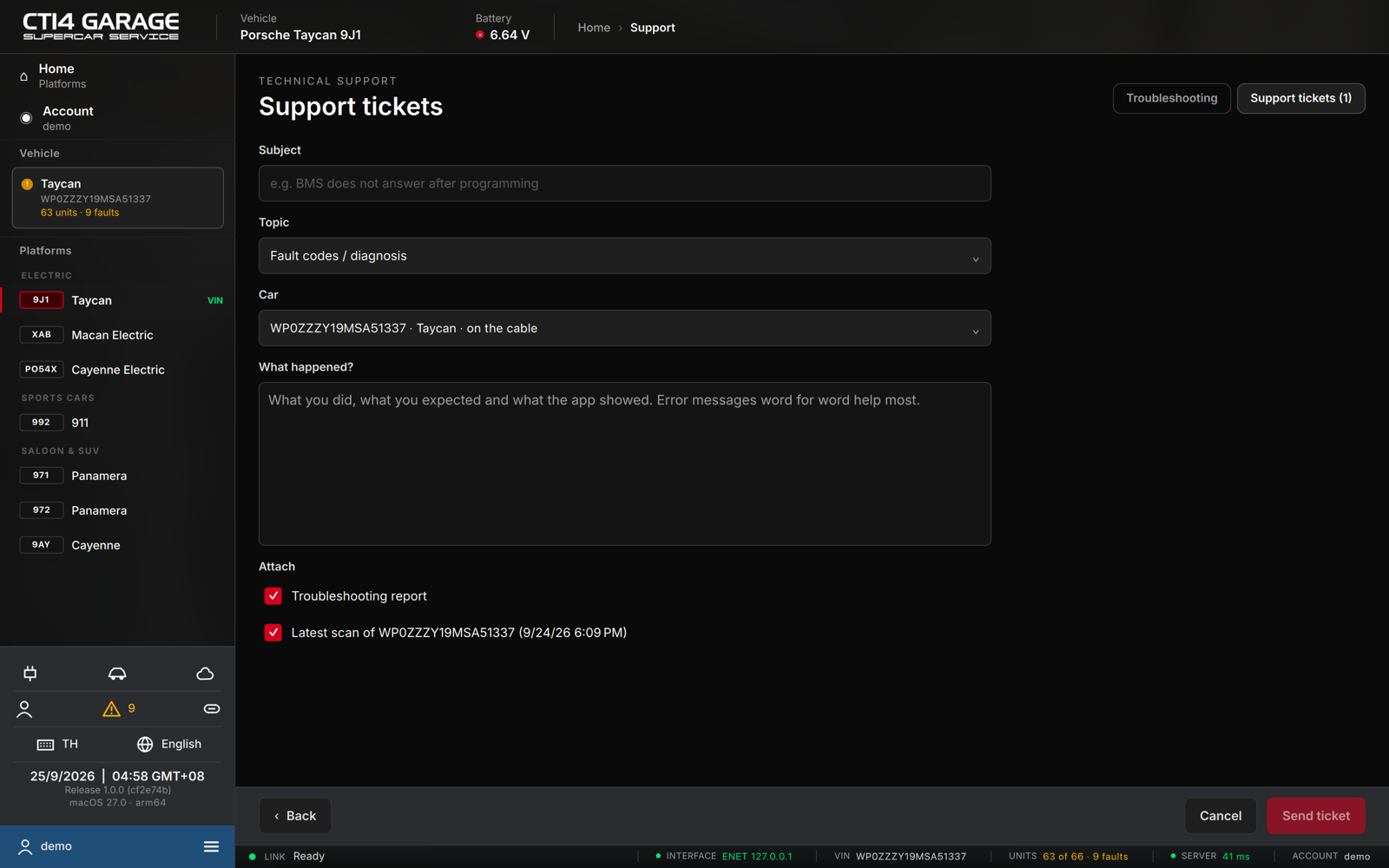
- Press New ticket.
- Enter a Subject, pick the Topic (connection, fault codes, coding, programming, billing, account, something else) and the Car it is about — the car on the cable is preselected, and each car is listed with the date of its last scan.
- Describe What happened — what you did, what you expected and what the app showed.
- Under Attach, keep the Troubleshooting report and the latest scan of the car ticked so the team sees what you see; after a programming job its log can be attached too.
- Press Send ticket.
Replies
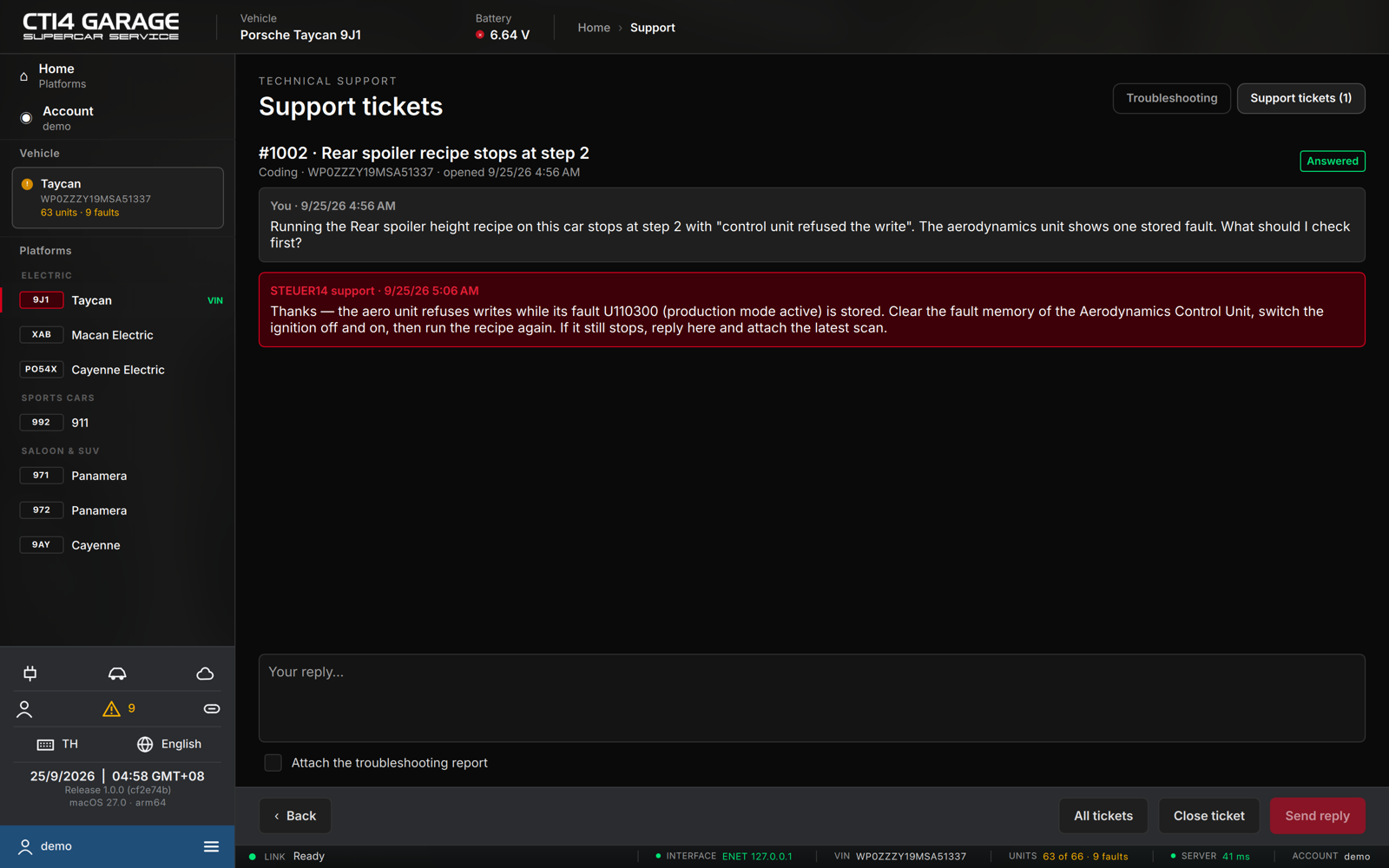
Replies from STEUER14 support arrive in the app, by e-mail and in the web panel. Open a ticket to read the conversation; type in Your reply… (optionally attaching a fresh troubleshooting report) and press Send reply. Close ticket closes it when the problem is solved — writing again opens it again. Back or All tickets returns to the list.
Tickets can also be opened and answered in the web panel (see chapter 20).