7. Coding
Coding writes a control unit's configuration parameters. STEUER14's coding editor reads every coding record as a flat table — one row per parameter, with a dropdown for enumerated values and an editable field for raw values — and writes your changes back with a full server backup and a read-back check. Coding needs a car licence or the workshop plan.
Opening the coding editor
Open a control unit and select the Coding & Programming tab.
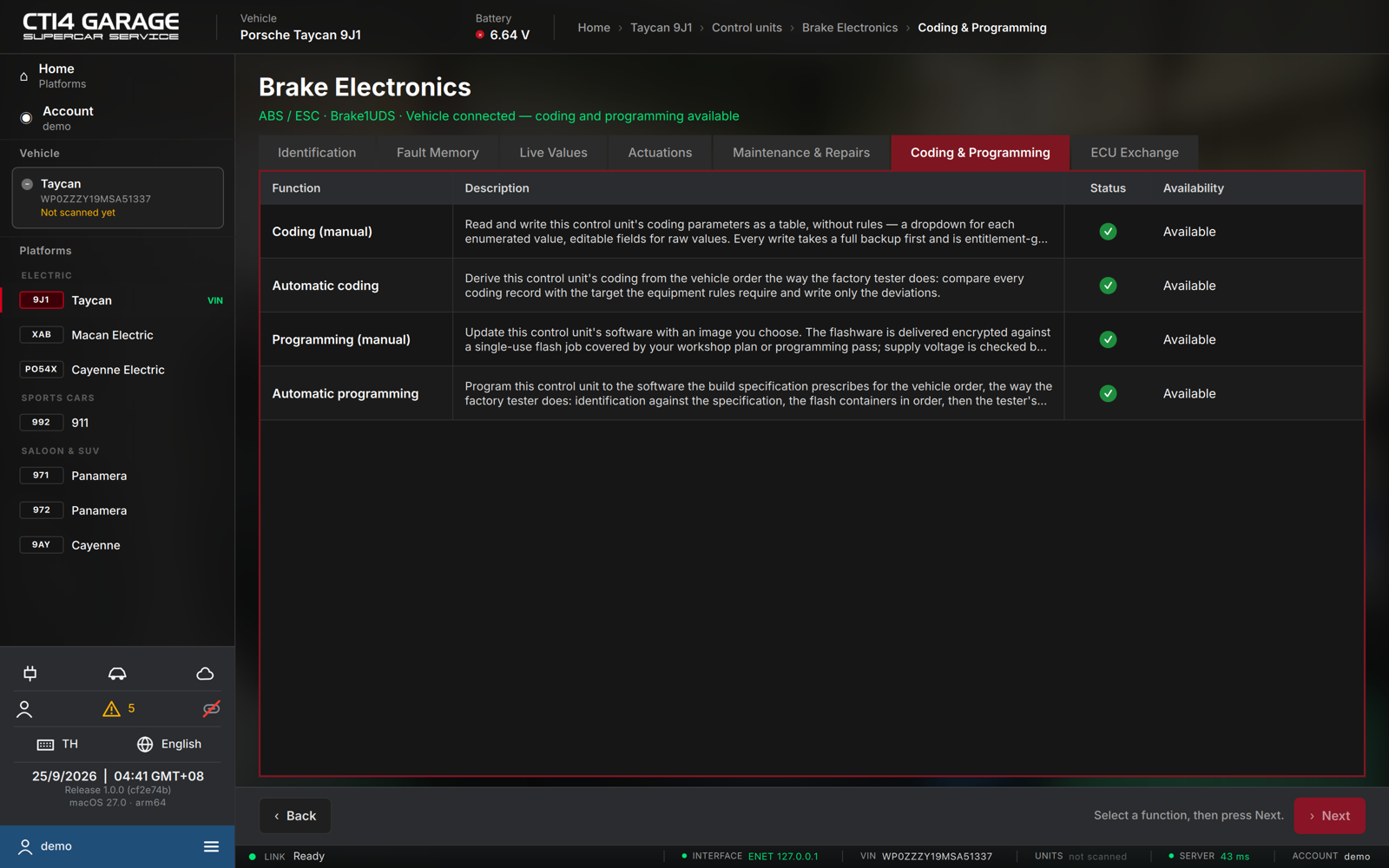
The tab lists four functions, each with a description and its availability:
- Coding (manual) — the editor described here.
- Automatic coding — code to the vehicle order by the factory rules (see chapter 12).
- Programming (manual) — flash a software image you choose.
- Automatic programming — flash to the build-specification target (see chapter 12).
Select Coding (manual) and press Next (or double-click the row).
The coding editor
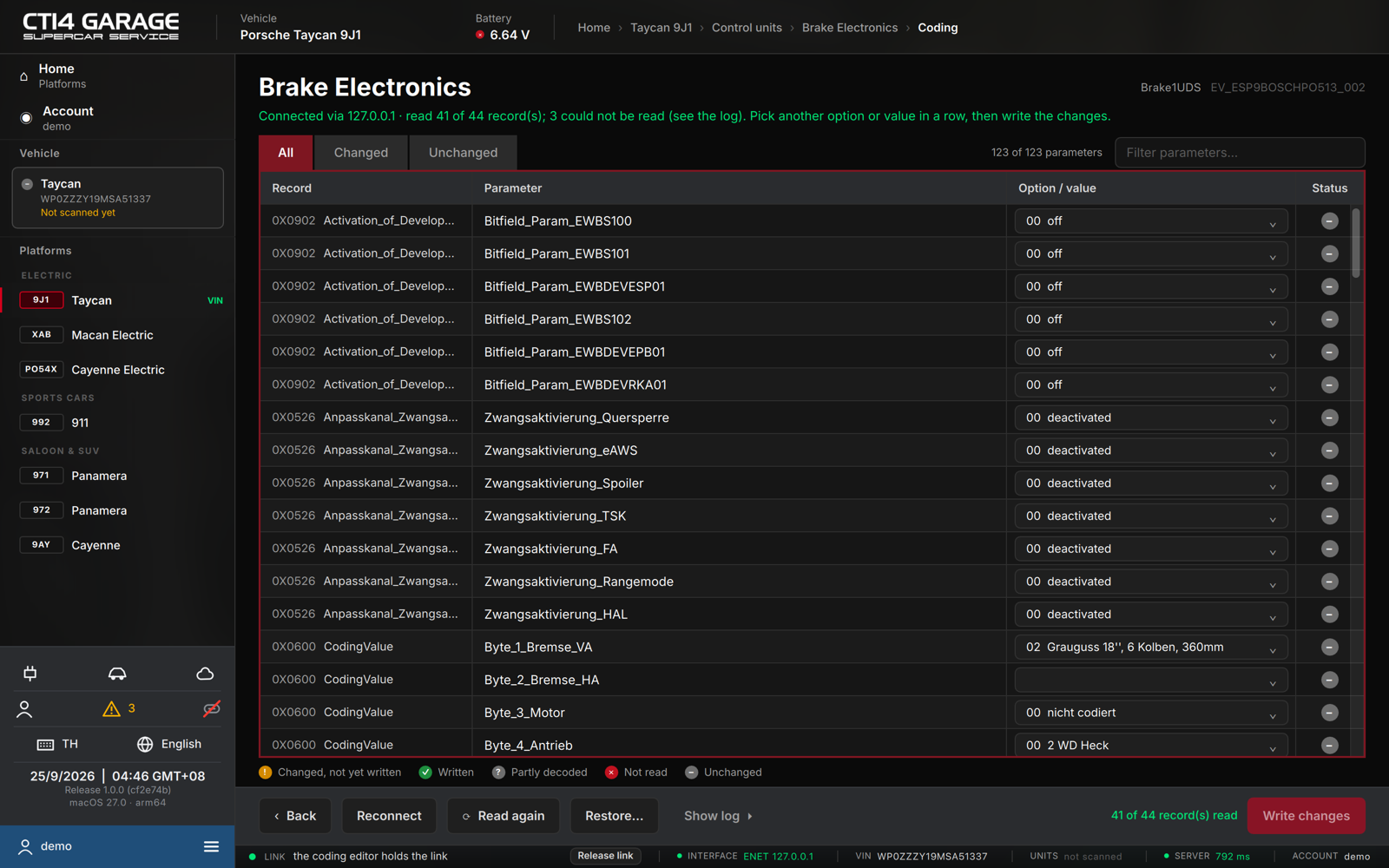
- The editor connects and reads the current values; the verdict line confirms read N of M record(s) and names any record that could not be read (see Show log).
- Each row shows the Record, the Parameter, an Option / value control, and a Status pictogram. Use the All / Changed / Unchanged tabs and Filter parameters… to find a parameter.
- Change a value by picking another option, adjusting the number, or editing the hex field. A changed row shows its previous value and a revert button (↺).
- Read again re-reads the unit; Reconnect opens a fresh session.
Backup → write → verify
- Press Write changes (N).
- The confirmation dialog lists every change and reminds you that a full, restorable backup of the control unit is stored on the server first; the write is blocked if the backup can't be secured.
- Choose Back up & write. The app takes the backup, computes the security unlock server-side, writes each record and reads it back to verify. Written rows turn green (✓ Written).
Every write is recorded in your account history (see chapter 19). If you try to close the app while a write runs, it asks you to wait.
Restoring a backup
- Press Restore… on the function bar.
- Choose one of the backups taken before an earlier write on this car.
- Press Confirm restore. The app backs up the current state first, then writes every record of the chosen backup byte for byte and verifies it.
Newer cars: SFD2
On newer cars (and on the Macan Electric and Cayenne Electric) many control units protect coding with SFD2. A write to such a unit is refused until the unit has been unlocked — see Special functions → SFD2 unlock.
Status legend
| Pictogram | Meaning |
|---|---|
| ! (amber) | Changed, not yet written |
| ✓ (green) | Written and verified |
| ? | Partly decoded — undecoded bytes are written back unchanged |
| ✕ | Not read from the control unit |
| – | Unchanged |